Invoices
Invoices allow you to bill customers one-time for products and services while keeping track of payments and outstanding balances.
Invoices can be created manually or generated automatically through subscriptions and collections.
Creating an Invoice
To create a new invoice, select Create.
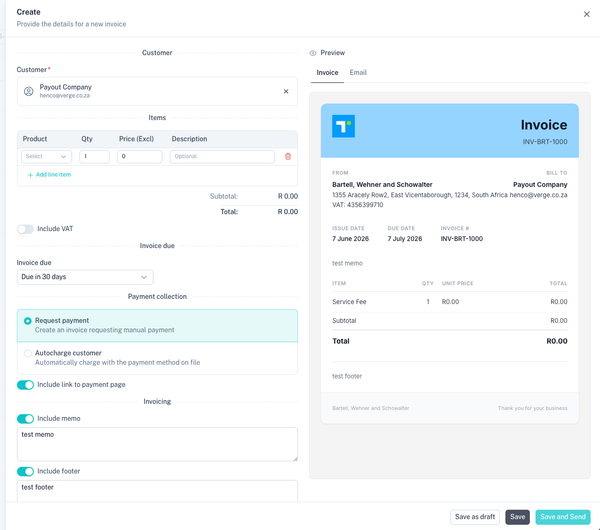
The invoice creation screen allows you to select a customer, add products, configure payment collection methods, and customise invoice content.
Selecting a Customer
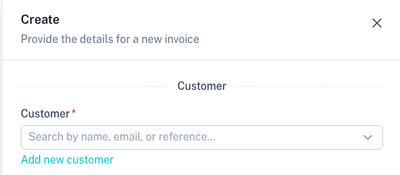
An invoice must be linked to a customer.
You can:
- Select an existing customer
- Create a new customer directly from the invoice screen
Adding Products
Products determine what will be billed to the customer.
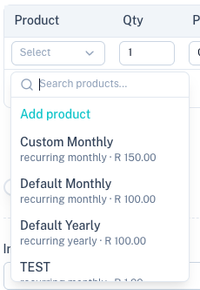
Products can be selected from your product catalogue and include:
- One-time products
- Recurring products
- A combination of both
Billing Behaviour
| Product Type | Billing Behaviour |
|---|---|
| One-time Product | Billed once only. |
| Recurring Product | Billed once only. A collection or subscription needs to be created for recurring collections. |
| One-time + Recurring Products | Same as above |
For more advanced recurring billing:
- Use Subscriptions for recurring card payments.
- Use Collections for recurring EFT Debit Orders, Registered Mandates (RM), and DebiCheck collections.
VAT
All product prices are entered exclusive of VAT.
When Include VAT is enabled, VAT is automatically calculated and added to the invoice total.
Invoice Due Date
The invoice due date determines when payment is expected from the customer.
Common options include:
- Due on receipt
- Due in 7 days
- Due in 14 days
- Due in 30 days
Default invoice terms can be configured under:
Payment Collection
Choose how payment should be collected.
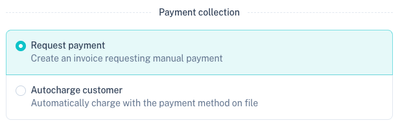
Request Payment
Creates a standard invoice requesting payment from the customer.
The customer receives the invoice and can pay manually.
Autocharge Customer
Automatically charges a saved payment method linked to the customer.
This option is useful for customers with stored card payment methods.
Include Link to Payment Page
Enable Include link to payment page to add an online payment link to the invoice.

When enabled:
- A payment page link is added to the invoice email.
- Customers can pay online using card payment methods.
- Payment status updates automatically once payment is received.
This option is intended for card payments and online checkout payments.
Invoice Customisation
Invoices can optionally include:
- Memo
- Footer text
- Payment link
- Custom invoice due dates
Default memo and footer values can be configured under:
Invoice Preview
A real-time preview is available while creating an invoice.
Invoice Preview
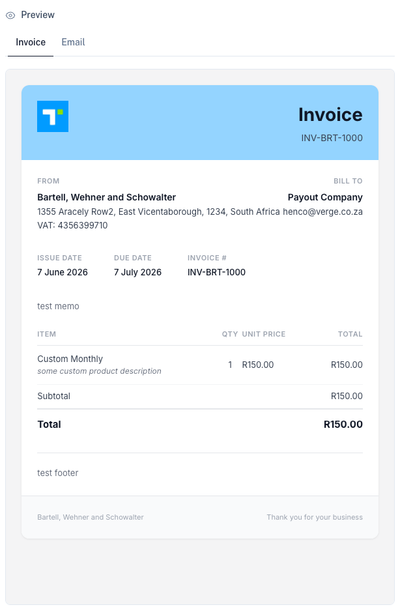
This preview shows exactly how the PDF invoice will appear to the customer.
Email Preview
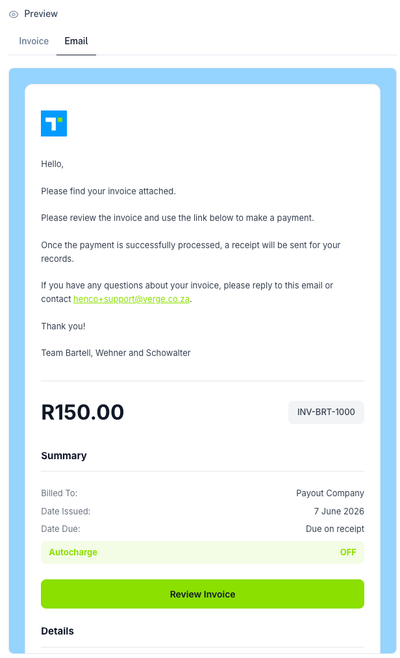
This preview shows the email that will be sent together with the invoice.
Saving an Invoice
The following options are available:
| Option | Description |
|---|---|
| Save as Draft | Save the invoice without sending it. |
| Save | Save the invoice. |
| Save and Send | Save and immediately email the invoice to the customer. |
Managing Invoices
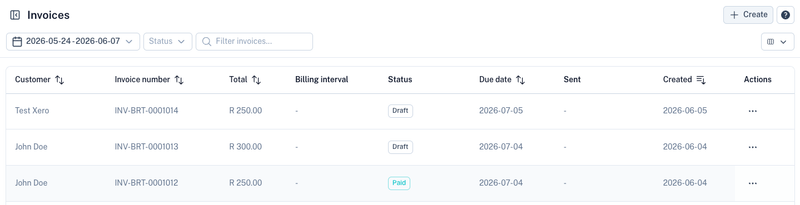
All invoices are displayed within the invoice list.
The invoice list displays:
- Customer
- Invoice number
- Total amount
- Billing interval
- Status
- Due date
- Date sent
- Creation date
Use the filters and search functionality to quickly locate invoices.
Invoice Actions
Each invoice provides additional actions through the action menu.
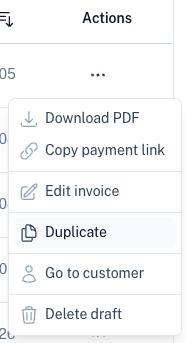
| Action | Description |
|---|---|
| Download PDF | Download a copy of the invoice PDF. |
| Copy Payment Link | Copy the online payment link if checked. |
| Edit Invoice | Modify a draft invoice. This will hide if the invoice was issued |
| Duplicate | Create a copy of an existing invoice. |
| Go to Customer | Open the associated customer profile. |
| Delete Draft | Remove an unsent draft invoice. This will hide if the invoice was issued |
Invoice Statuses
| Status | Description |
|---|---|
| Draft | Invoice has been created but not yet sent. |
| Issued | Invoice has been sent to the customer. |
| Paid | Invoice has been successfully paid. |
| Overdue | Payment has not been received by the due date. |
| Void | Invoice has been cancelled and is no longer payable. |
| Uncollectable | The invoice was marked as uncollectable |
Best Practices
- Create products before creating invoices.
- Use recurring products when billing customers on a regular basis.
- Enable payment links to improve collection rates.
- Use invoice previews to verify branding and formatting before sending.
- Configure default invoice settings under Invoice Settings.
- Use subscriptions and collections for fully automated recurring billing workflows.