Payouts
Payouts allow you to send EFT payments directly from your account to either recipients or customers.
Common use cases include:
- Supplier payments
- Salary payments
- Contractor payments
- Commission payments
- Loan disbursements
- Customer refunds
Note: Payouts can be made to either a Recipient or a Customer. Customer payouts are commonly used for loan disbursements and refunds.
Overview
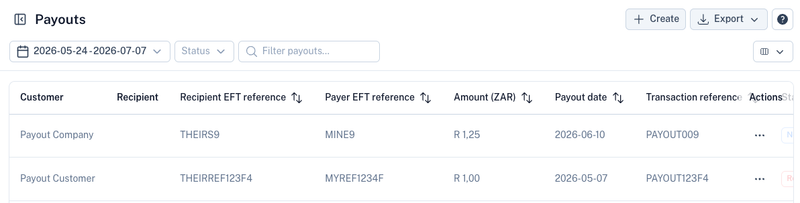
The Payouts screen displays all payout transactions processed through your account.
The table includes:
| Column | Description |
|---|---|
| Customer | Customer associated with the payout (if applicable). |
| Recipient | Recipient reference. |
| Recipient EFT Reference | Reference visible on the recipient's bank statement. |
| Payer EFT Reference | Reference used internally by the payer. |
| Amount | Payout amount. |
| Payout Date | Date the payment will be processed. |
| Transaction Reference | Unique payout reference. |
| Status | Current payout status. |
Creating a Payout
Select Create to create a new payout.

The payout wizard guides you through the payout setup process.
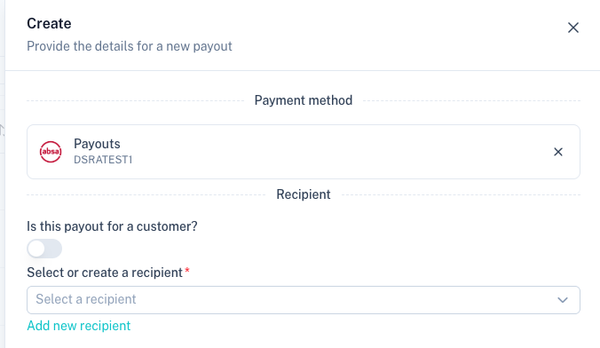
Step 1: Select Payment Method
Choose the payout payment method that will be used to process the EFT payment.
Step 2: Select Recipient or Customer
Payouts can be made either to a recipient or directly to a customer.
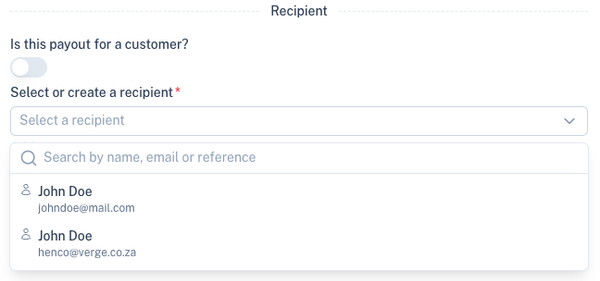
Recipient Payout
Use this option when paying suppliers, employees, contractors or other third parties.
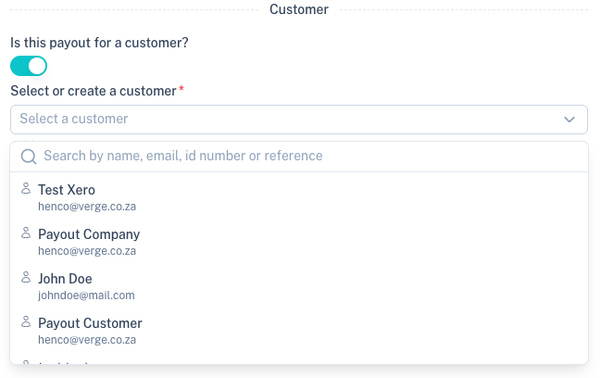
Customer Payout
Use this option when paying funds directly to a customer.
Common examples include:
- Loan disbursements
- Refunds
- Cashback payments
- Claim settlements
Step 3: Select Bank Account
Select the bank account that will receive the payout.

You can also create a new bank account directly from the payout wizard if required.
Step 4: Capture Payout Details
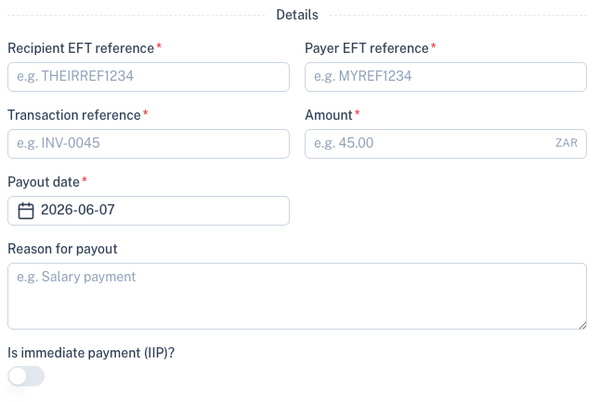
| Field | Description |
|---|---|
| Recipient EFT Reference | Reference displayed on the recipient's bank statement. |
| Payer EFT Reference | Reference used by the payer for reconciliation. |
| Transaction Reference | Unique transaction reference for reporting and reconciliation. |
| Amount | Payout amount. |
| Payout Date | Date the payout should be processed. |
| Reason For Payout | Internal description explaining the payout purpose. |
| Immediate Payment (IIP) | Process the payout as an immediate payment where supported. |
Step 5: Authorisation (System Operator Clients Only)
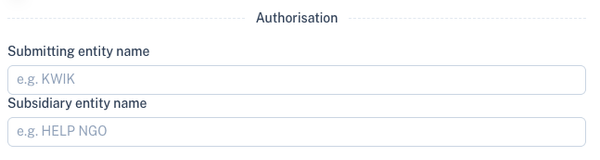
Important: This section is only available to System Operator (SO) clients that use their own bank account.
The authorisation details are used when a payout must be approved at the bank before it can be processed.
| Field | Description |
|---|---|
| Submitting Entity Name | Name of the organisation submitting the payout file. |
| Subsidiary Entity Name | Optional subsidiary or division name. |
Step 6: Notifications
Optional notifications can be configured for payout updates.
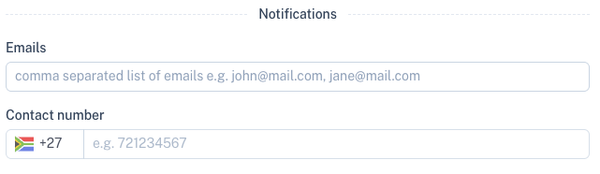
Notifications can be sent via:
- SMS
Multiple email addresses may be specified using a comma-separated list.
Payout Statuses
The status filter can be used to locate payouts in specific states.
| Status | Description |
|---|---|
| Accepted | Payout accepted for processing. |
| Duplicate | Duplicate transaction detected. |
| Internal Error | Internal processing error occurred. |
| No Response | Awaiting response from the processing system. |
| None | No status currently assigned. |
| Queued | Waiting to be processed. |
| Rejected | Payout was rejected. |
| Saved | Saved but not yet submitted. |
| Sent | Submitted for processing. |
| System Error | Processing failed due to a system error. |
Exporting Payouts
Payout data can be exported in CSV format.
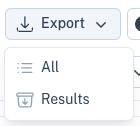
Export options include:
| Option | Description |
|---|---|
| All | Export all payouts. |
| Results | Export only the currently filtered results. |
Payout Payment Method Settings
Payout behaviour can be configured under:
Settings → Payment Methods → Payouts
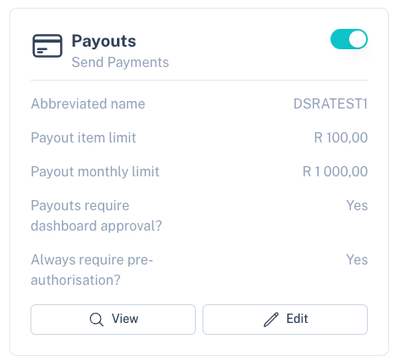
The payment method screen displays:
- Payout transaction limits
- Monthly payout limits
- Dashboard approval settings
- Pre-authorisation requirements
To modify these settings select Edit.
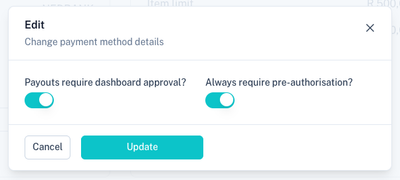
Dashboard Approval
When enabled, every payout must first be approved within the Kwik Dashboard before it is sent to the bank.
This is useful when:
- Multiple staff members create payouts
- Bank account access should be restricted
- Management approval is required before funds are released
Pre-Authorisation
When enabled, all payouts require pre-authorisation before processing.
Note: Enabling pre-authorisation overrides API requests and applies to all payouts regardless of how they are created.
Increasing Limits
Transaction and monthly payout limits are displayed on the payment method configuration screen.
If higher limits are required, please contact support.
Best Practices
- Use customer payouts for loans and refunds.
- Use recipient payouts for suppliers, salaries and contractors.
- Enable dashboard approval when multiple users have access to create payouts.
- Use meaningful EFT references to simplify reconciliation.
- Review payout limits before processing large payments.
- Enable pre-authorisation where additional payment controls are required.
Related Sections
Manage recipients:
View available balances:
Configure payout settings: