Branding
The Branding section allows you to personalise the customer experience by applying your company colours, logo and brand assets across payment pages, invoices and emails.
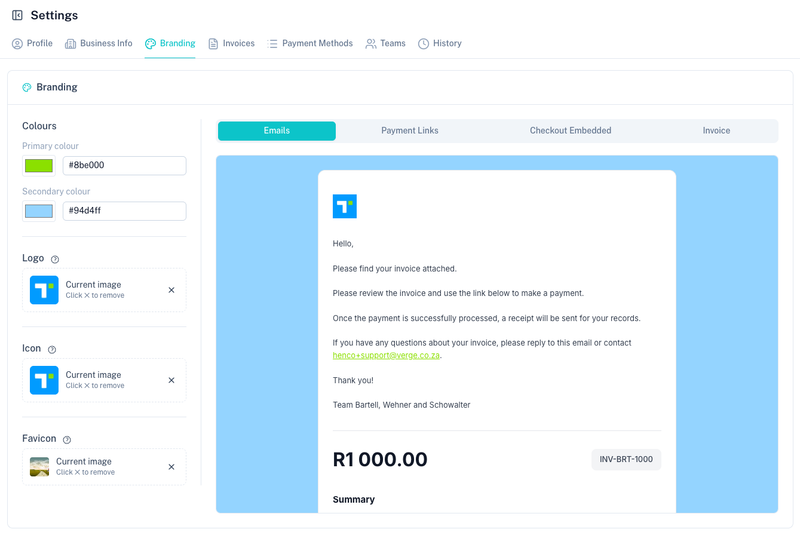
Branding Areas
Use the tabs at the top of the preview to switch between the different branded experiences.

Available areas include:
| Area | Description |
|---|---|
| Emails | Preview branded customer emails. |
| Payment Links | Preview hosted payment link pages. |
| Checkout Embedded | Preview embedded checkout experiences. |
| Invoice | Preview generated invoices. |
Changes made in Branding are automatically reflected across all customer-facing experiences.
Colours
Configure your primary and secondary brand colours.
Available colour settings include:
| Colour | Description |
|---|---|
| Primary Colour | Used for buttons, highlights and call-to-action elements. |
| Secondary Colour | Used for backgrounds and supporting design elements. |
The live preview updates automatically as colours are changed.
Logo
Upload your company logo.
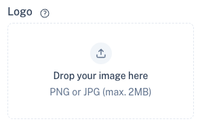
Supported formats:
- PNG
- JPG
Maximum file size:
- 2 MB
The logo appears on:
- Payment Links
- Embedded Checkout Pages
- Electronic Mandates
- Customer Emails
- Invoices
Icon
Upload a square version of your logo or icon.
This icon may be displayed in:
- Customer-facing pages
- Email templates
- Application shortcuts
For best results, use a square image with a transparent background.
Favicon
Upload a favicon for hosted pages.
The favicon is the small icon displayed in the browser tab when customers visit your hosted payment pages.
For best results:
- Use a square image.
- Use a high-resolution icon.
- Keep the design simple and recognisable.
Live Preview
The preview panel provides a real-time representation of how your branding will appear to customers.
The preview allows you to:
- Review colour selections.
- Confirm logo placement.
- Verify email layouts.
- Test invoice styling.
Where Branding Is Used
Your branding is automatically applied to:
- Payment Links
- Pay Buttons
- Electronic Mandates
- Customer emails
- Generated invoices
- Hosted checkout pages
Tips
- Use colours that match your company branding.
- Upload a high-quality logo for the best customer experience.
- Test all preview tabs before saving changes.
- Ensure uploaded images remain clear on both desktop and mobile devices.
- Keep branding consistent across all customer-facing channels.