Products
Products allow you to standardise pricing across your business and provide a central catalogue for goods and services.
Products can be assigned to:
- Invoices
- Subscriptions
- Collections
- Payment Links
- Pay Buttons
Products are also useful for:
- Inventory management
- Revenue reporting
- Tracking transactions per product
- Standardising pricing across customers
Creating a Product
To create a new product, select Create.
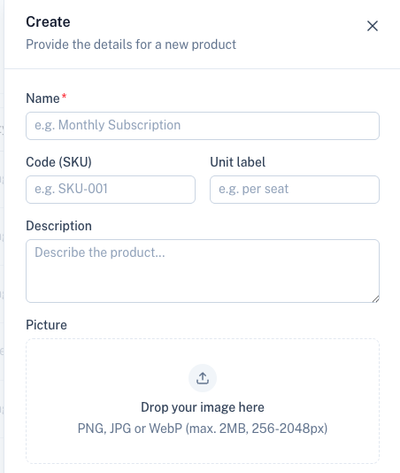
The product form allows you to define product information, pricing, billing behaviour, and recurring subscription settings.
Product Details
| Field | Description |
|---|---|
| Name | Product or service name displayed throughout the platform. |
| Code (SKU) | Internal stock keeping unit or product code. |
| Unit Label | Unit description such as "per seat", "per user", or "per month". |
| Description | Detailed product description. |
| Picture | Optional product image used throughout the platform. |
Pricing
Price
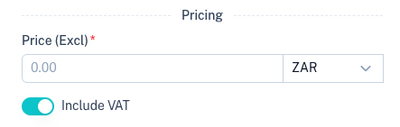
Enter the product price excluding VAT.
Include VAT
When enabled, VAT is automatically included when the product is used on invoices, subscriptions, collections, payment links, and pay buttons.
Billing
Products can either be billed as a once-off purchase or as a recurring subscription.
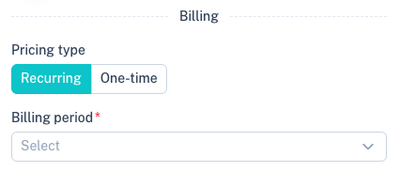
Pricing Type
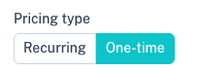
| Type | Description |
|---|---|
| One-time | Product is billed once only. |
| Recurring | Product is billed repeatedly according to the selected billing schedule. |
Billing Period
When Recurring is selected, you must specify how often the product should be billed.
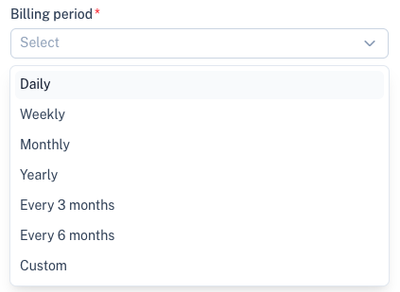
Available billing periods:
| Billing Period | Description |
|---|---|
| Daily | Charge every day. |
| Weekly | Charge every week. |
| Monthly | Charge every month. |
| Yearly | Charge once per year. |
| Every 3 months | Charge every quarter. |
| Every 6 months | Charge twice per year. |
| Custom | Define your own billing interval. |
Custom Billing Period
If Custom is selected, you can define your own interval.
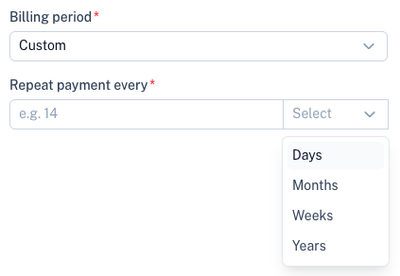
Examples:
| Example | Result |
|---|---|
| Every 14 Days | Charge every 14 days. |
| Every 2 Weeks | Charge every 2 weeks. |
| Every 3 Months | Charge every 3 months. |
| Every 5 Years | Charge every 5 years. |
Saving a Product
Once all information has been completed, choose one of the following options:
| Option | Description |
|---|---|
| Save | Creates and activates the product immediately. |
| Save as Draft | Saves the product without activating it. |
Managing Products
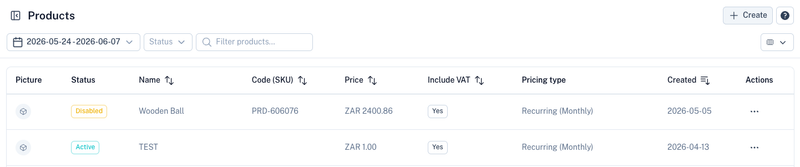
All products are displayed within the Products section.
The product list displays:
- Product image
- Status
- Product name
- SKU code
- Price
- VAT status
- Pricing type
- Creation date
Use the filters and search functionality to quickly locate products.
Product Actions
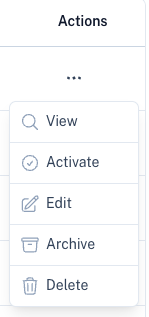
Each product provides additional actions through the action menu.
| Action | Description |
|---|---|
| View | View the product details. |
| Activate | Enable a draft or inactive product. |
| Edit | Modify product information and pricing. |
| Archive | Archive the product without deleting historical data. |
| Delete | Permanently remove the product. |
Product Usage
Products can be used throughout the Kwik platform:
Invoices
Products can be added directly to invoices, ensuring consistent pricing and descriptions.
Subscriptions
Recurring products can be used to automatically bill customers at predefined intervals.
Collections
Products can be attached to collections for recurring debit order and DebiCheck billing.
Payment Links and Pay Buttons
Products can be assigned to payment links and pay buttons, allowing customers to purchase predefined products online.
Best Practices
- Create products before creating subscriptions and payment links.
- Use SKU codes to simplify reporting and integrations.
- Use recurring products for memberships, subscriptions, and service agreements.
- Use one-time products for once-off purchases and ad hoc charges.
- Keep product descriptions clear and customer-friendly.
- Upload product images where appropriate for improved customer experience.