Electronic Mandates
Electronic Mandates allow customers to authorise future collections electronically. Once authorised, collections can be processed according to the schedule and payment method selected.
Note: Electronic Mandates are used for DebiCheck, Registered Mandates (RM) and EFT Debit Orders. For card payments and alternative payment methods, see Payment Links.

Creating an Electronic Mandate
Click the Create button in the top-right corner.
Step 1: Select a Mandate Type
Choose how the customer will authorise the mandate.
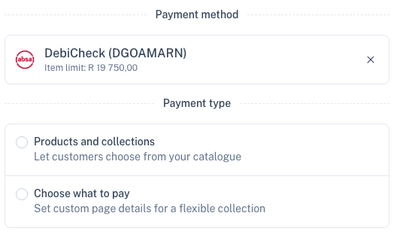
The available options depend on your account configuration and enabled payment methods.
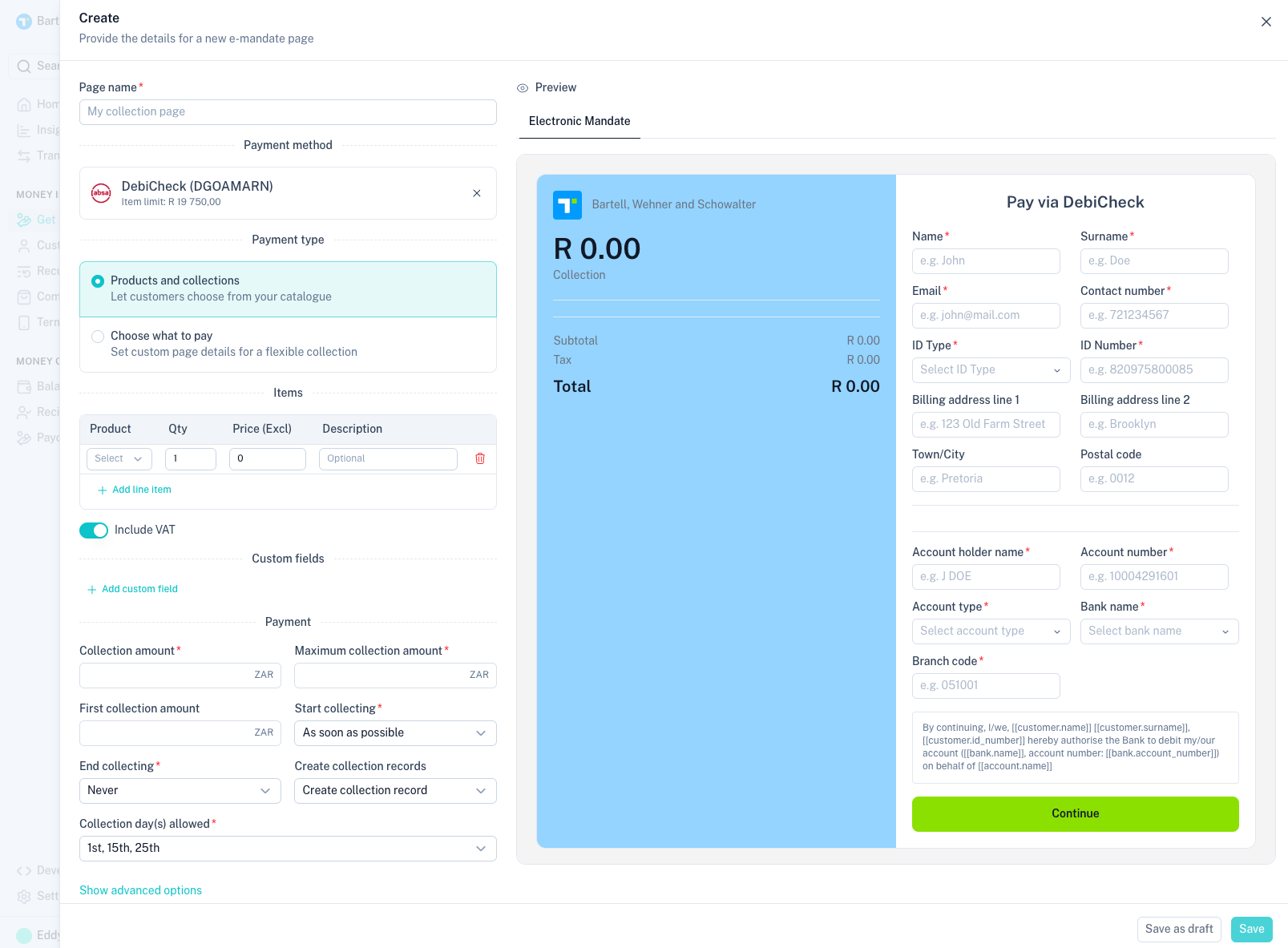
Step 2: Select a Payment Method
Choose the collection method that will be used after authorisation.
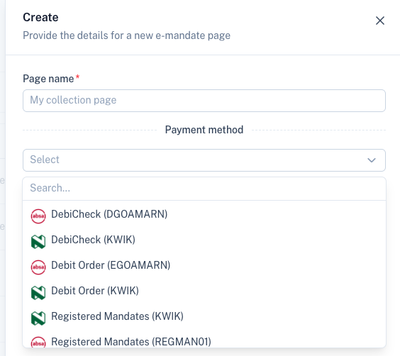
| Payment Method | Description |
|---|---|
| DebiCheck | Bank-authenticated mandates with customer approval through their bank. |
| Registered Mandates (RM) | PASA registered mandates that support ongoing collections. |
| EFT Debit Orders | Standard EFT debit order collections. |
Step 3: Select Products
Choose the products or subscriptions that the customer will authorise.
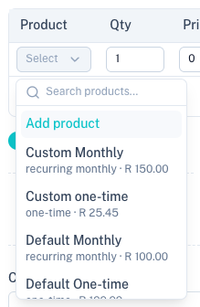
You can include:
- One-time products
- Recurring subscriptions
- Multiple products
Mandate Configuration
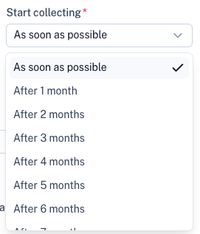
Start Collecting
Specify when collections should begin.
End Collecting
Choose when collections should stop.
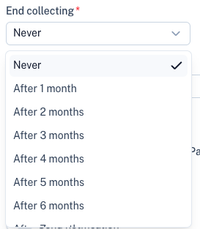
Options typically include:
- Never end
- End on a specific date
- End after a number of successful collections
Mandate Only or Mandate and Collections
Choose whether you want to:
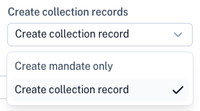
- Create a mandate only.
- Create a mandate and automatically schedule collections.
DebiCheck and RM Fields
When DebiCheck or Registered Mandates (RM) is selected, additional fields are displayed.
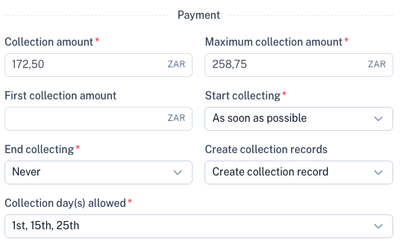
| Field | Description |
|---|---|
| Debit Day | Day of the month the collection should take place. |
| First Collection Date | Date of the first collection. |
| Collection Amount | Amount that will be collected. |
| Frequency | How often collections should occur. |
| Tracking Days | Number of days a collection may be tracked after the debit day. |
| Contract Reference | Reference used to identify the agreement with the customer. |
| Customer Reference | Reference that appears on reports and transaction records. |
EFT Debit Order Fields
When EFT Debit Orders is selected, the EFT-specific fields are displayed.
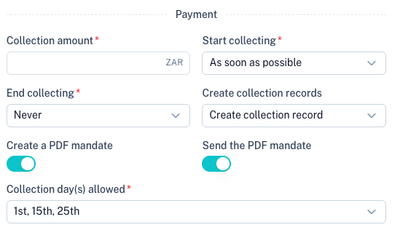
| Field | Description |
|---|---|
| Debit Day | Day of the month the collection should take place. |
| First Collection Date | Date of the first collection. |
| Collection Amount | Amount that will be collected. |
| Frequency | How often collections should occur. |
| Tracking Days | Number of days collections should be tracked after the debit day. |
| Customer Reference | Reference used to identify the customer or agreement. |
Advanced Settings
Additional mandate configuration options are available under Advanced Settings.

EFT and RM Settings
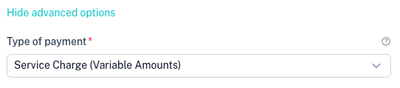
These settings control how EFT Debit Orders and Registered Mandates are processed.
DebiCheck Settings
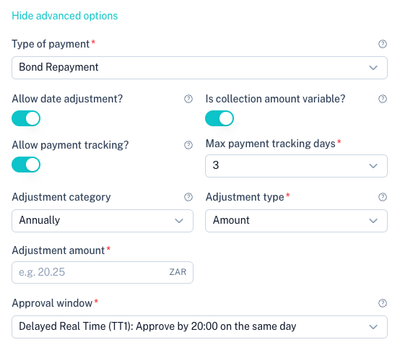
DebiCheck-specific options include mandate approval and adjustment controls.
Approval Window
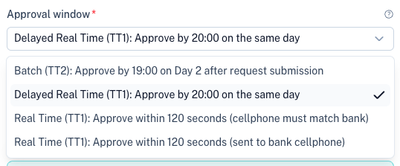
Defines how long the customer has to approve the DebiCheck mandate.
Adjustment Category
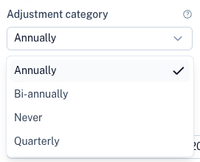
Specifies how future collection amount adjustments may be handled.
Adjustments
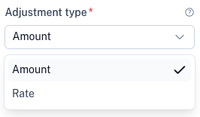
Allows predefined collection amount changes within approved parameters.
Custom Fields
Capture additional information from customers.

Click Add custom field to create a new field.
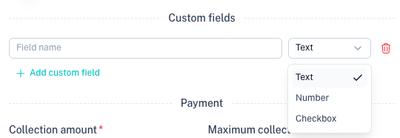
Available field types:
- Text
- Number
- Select
- Checkbox
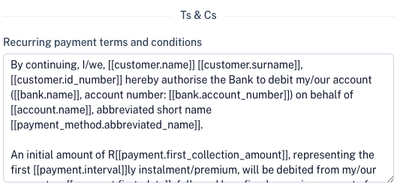
Dynamic Terms and Conditions
Add custom terms and conditions that customers must accept before authorising the mandate.
After Authorisation
Choose what should happen after the customer completes the mandate process.
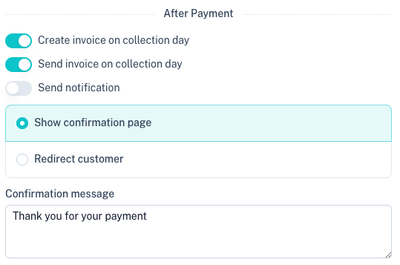
Available options include:
- Generate invoice and send receipt
- Send confirmation email
- Show confirmation page
Redirect Customer
You can redirect the customer back to your website after completion.
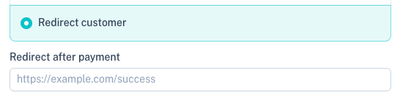
Configure:
- Success URL
- Cancel URL
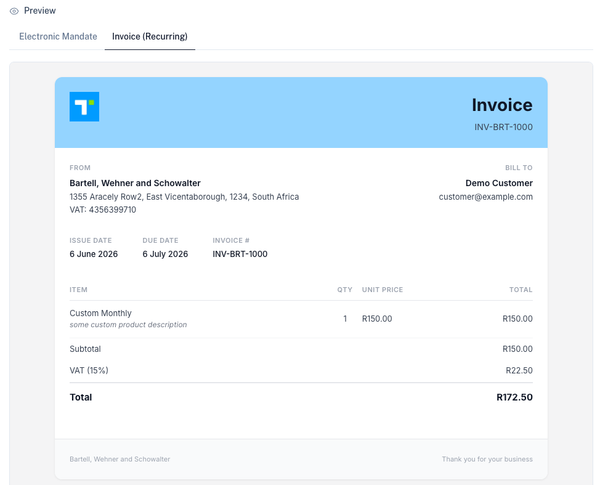
Preview
Preview the customer-facing mandate page before publishing.
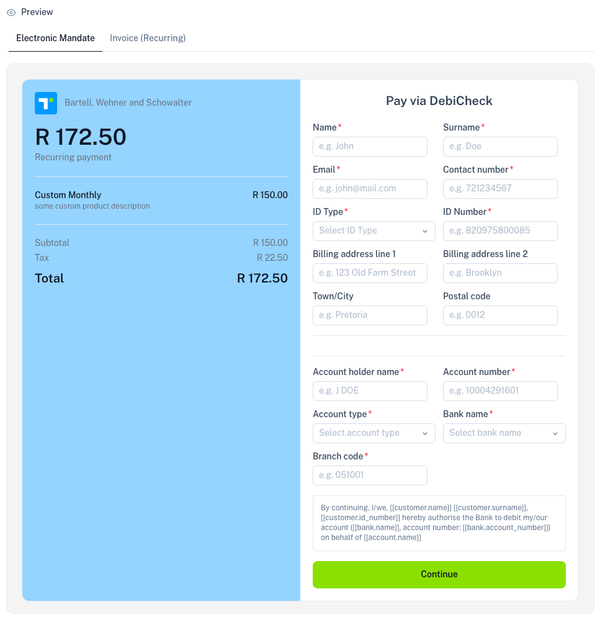
Invoice Preview
Save or Publish

You can:
- Save as Draft
- Publish immediately
Managing Electronic Mandates
Use the Actions menu to manage existing mandates.
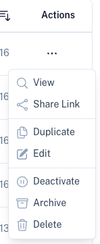
Available actions include:
| Action | Description |
|---|---|
| View | View the mandate configuration. |
| Share Link | Copy and share the mandate link. |
| Duplicate | Create a copy of an existing mandate. |
| Edit | Update the mandate configuration. |
| Deactivate | Prevent new mandate authorisations. |
| Archive | Hide the mandate from active lists. |
| Delete | Permanently remove the mandate. |
Branding
The colours, logo and customer-facing appearance of mandate pages and invoices can be customised under Branding.
This branding is automatically applied to:
- Electronic Mandates
- Payment Links
- Pay Buttons
- Generated Invoices
Tips
- Use DebiCheck when customer bank authentication is required.
- Use RM for PASA-compliant recurring collections.
- Use EFT Debit Orders for standard debit order collections.
- Test your mandate flow before sending it to customers.
- Configure branding to provide a consistent customer experience.