Pay Buttons
Pay Buttons work similarly to Payment Links but are designed to be embedded directly into your website. Customers can click the button and complete payment using the Kwik hosted checkout page.
Note: Pay Buttons support card payments and alternative payment methods. For Debit Orders and DebiCheck collections, an Electronic Mandate must be created instead.

Creating a Pay Button
Click the Create button in the top-right corner.
The setup process is similar to creating a Payment Link and supports:
- One-time products
- Recurring subscriptions
- Multiple products
- Customer information capture
- Custom fields
- Invoice generation
- Payment confirmations
Button Styling
Customise the appearance of the button to match your website.
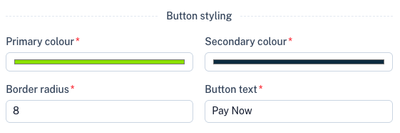
Available styling options include:
| Setting | Description |
|---|---|
| Primary Colour | Background colour of the button. |
| Secondary Colour | Text colour of the button. |
| Border Radius | Rounded corners of the button. |
| Button Text | Text displayed on the button. |
Preview
A live preview allows you to see how the button will appear before publishing.
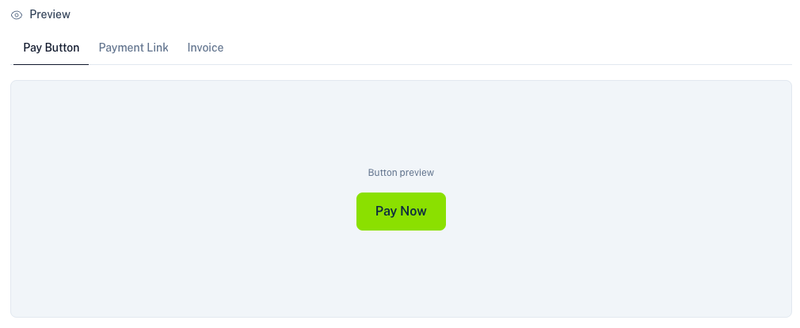
You can also preview:
- The payment button
- The hosted payment page
- The generated invoice
Copying the Embed Code
Once the Pay Button has been created, open the Actions menu and select Copy Pay Button.
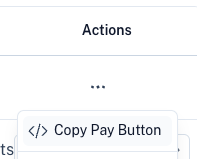
Kwik will generate an embeddable HTML button.
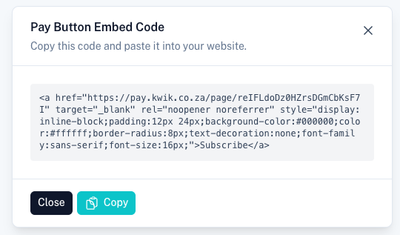
Click Copy and paste the code into your website wherever you want the button to appear.
Managing Pay Buttons
Use the Actions menu to manage existing Pay Buttons.
Available actions include:
| Action | Description |
|---|---|
| View | View the Pay Button configuration. |
| Copy Pay Button | Copy the embed code for your website. |
| Duplicate | Create a copy of an existing Pay Button. |
| Edit | Update the button configuration. |
| Deactivate | Prevent new payments while keeping reporting available. |
| Archive | Hide the button from active lists. |
| Delete | Permanently remove the Pay Button. |
Tips
- Match the button styling to your website branding.
- Use recurring products for subscriptions and memberships.
- Test the button on your website before making it live.
- Use Payment Links when you do not have access to your website's source code.
- Use Pay Buttons when you want a seamless payment experience directly from your website.